Document information
| Title | SORPS IoT Cloud – User Manual (customer edition) |
|---|---|
| Document number / revision | SORPS-IOT-UM-001 / Rev 1 |
| Issue date | 2026-10-21 |
| Applies to | SORPS IoT Cloud web portal, software release 2026.10, at https://iot.sorpstech.com |
| Publisher | SORPS Technologies Private Limited, Bangalore, India |
| Structure | Prepared in line with IEC/IEEE 82079-1:2019 (preparation of information for use) and ISO/IEC/IEEE 26514 (information for users of software). Safety messages follow the signal-word system of ANSI Z535.6 / ISO 3864-2. |
Revision history
| Rev | Date | Description of change | Author |
|---|---|---|---|
| 0 | 2026-10-21 | First issue: online user guide with annotated screenshots. | SORPS |
| 1 | 2026-10-21 | Restructured to IEC/IEEE 82079-1: document control, safety and security information, intended use, system requirements, troubleshooting table, data and privacy, glossary, status reference, numbered figures and tables, company details, page numbering. | SORPS |
Approval
| Name | Designation | Signature | Date | |
|---|---|---|---|---|
| Prepared by | ||||
| Reviewed by | ||||
| Approved by |
Copyright, trademarks and disclaimer
© 2026 SORPS Technologies Private Limited. All rights reserved. This document may be copied and distributed by customers of SORPS for use with their own equipment only. "SORPS" and the SORPS logo are trademarks of SORPS Technologies Private Limited. Other product and company names are trademarks of their respective owners. Map data © OpenStreetMap contributors.
The information in this manual is believed to be accurate at the date of issue. SORPS may change the software and this manual without notice; the current revision is always available at https://iot.sorpstech.com/manual.html. Screenshots show demonstration data and may differ slightly from your installation. Printed copies are uncontrolled.
1 About this manual
1.1 Purpose and scope
This manual explains how customers use the SORPS IoT Cloud web portal to monitor SORPS equipment: viewing live values and equipment status, handling alarms, analysing history, downloading reports and setting up alarm notifications.
It does not cover installation, commissioning or configuration of devices, PLCs or gateways, nor administrator functions; these are carried out by SORPS. For the operation and maintenance of the equipment itself, refer to the equipment's own operation and maintenance manual.
1.2 Intended users
Plant managers, operators, maintenance and quality staff of SORPS customers. No IT or programming knowledge is required. Users should be familiar with using a web browser and with the equipment being monitored.
1.3 Product and version covered
SORPS IoT Cloud web portal, software release 2026.10, accessed at https://iot.sorpstech.com. Your company logo and colours may appear in the portal if SORPS has set up customer branding; the functions are the same.
1.4 Related documents
| Document | Content |
|---|---|
| Equipment operation and maintenance manual | Safe operation and maintenance of the monitored SORPS equipment |
| Online version of this manual | https://iot.sorpstech.com/manual.html (always the current revision) |
1.5 Conventions used in this manual
| Convention | Meaning |
|---|---|
| Save | A button, menu item or label on the screen |
| Numbered steps 1, 2, 3 | Actions to be carried out in the order given |
| 1 in figures | Marker in a screenshot; explained in the numbered key below the figure |
+919876543210 | Text to be typed exactly as shown |
| Figure n / Table n | Numbered figures and tables, referred to in the text |
Table 1 – Typographic conventions
Safety and other important messages are marked with these signal words:
| Signal word | Meaning |
|---|---|
| ⚠ WARNING | A hazardous situation which, if not avoided, could result in death or serious injury. |
| ⚠ CAUTION | A hazardous situation which, if not avoided, could result in minor or moderate injury. |
| NOTICE | Possible damage to equipment, product or data, or loss of information. Not related to personal injury. |
| NOTE | Helpful information and tips. |
Table 2 – Signal words
2 Safety and security information
2.1 Intended use
SORPS IoT Cloud is intended for the remote monitoring of SORPS equipment by authorised users: viewing operating values and status, receiving information about alarms, and evaluating historical data.
2.2 Limitations and foreseeable misuse
The portal is not a safety system. Alarms and notifications are transmitted over the internet and mobile networks and can be delayed or lost (power failure, network outage, device offline, e-mail filtered as spam).
Do not rely on the portal or its notifications to protect people, products or processes. Keep all on-site alarms, interlocks and safety devices of the equipment in operation and follow your site's safety procedures.
Before going to the equipment because of an alarm shown in the portal, follow the safety instructions of the equipment's operation and maintenance manual. A value shown in the portal may be older than the current state on site: check the time of the last update.
Changes to equipment settings (setpoints, start/stop, operating modes) are made only by authorised SORPS engineers. The customer portal does not provide control functions.
2.3 Information security
- Each person uses their own personal account. Do not share accounts or passwords.
- Use a strong password of at least 8 characters that you do not use elsewhere, and change it if you suspect misuse.
- Always log out on shared or public computers.
- SORPS will never ask for your password by e-mail, telephone or chat. Treat such requests as fraudulent.
- Connections to the portal are encrypted (HTTPS). Check that the browser address bar shows https://iot.sorpstech.com with a padlock before entering your password.
- After 5 incorrect password attempts the account is locked for 15 minutes to protect against password guessing.
Inform SORPS immediately when an employee with an account leaves your company, so that the account can be disabled.
3 Product description
3.1 System overview
The PLC of each SORPS machine sends its operating values over a secure internet connection to the SORPS IoT Cloud server. You view them in a web browser on a computer, tablet or phone.
Figure 1 – System overview
3.2 Main functions
| Function | Description | Section |
|---|---|---|
| Overview and map | All your devices at a glance with status, alarms and location | 6.1, 6.2 |
| Live monitoring | Current values, equipment picture, operator-panel view, updated automatically | 6.4, 6.7 |
| Alarms | Limit and offline alarms, alarm list, confirmation | 6.5 |
| History and trends | Tables and charts of past values, CSV export | 6.6 |
| Reports | Excel reports for any period; automatic reports by e-mail on request | 6.8 |
| Notifications | Alarm messages by e-mail, SMS or WhatsApp | 6.9 |
Table 3 – Functions of the portal
3.3 User roles
Customer users see only the devices assigned to their account and can use all functions described in this manual. SORPS administrators install and configure devices, set alarm limits, manage accounts and access rights, and provide support.
4 System requirements
| Item | Requirement |
|---|---|
| Web browser | Current version of Google Chrome, Microsoft Edge, Mozilla Firefox or Apple Safari (desktop or mobile). JavaScript and cookies must be enabled. |
| Screen | Computer: 1280 × 720 pixels or more recommended. Phones and tablets are supported. |
| Internet connection | Any broadband or mobile connection; access to https://iot.sorpstech.com (port 443) must not be blocked by your company firewall. |
| To receive the password-reset link and alarm e-mails; allow messages from sorpstech.com. | |
| Account | Personal user account created by SORPS (e-mail address and initial password). |
Table 4 – System requirements
5 Getting started
5.1 Logging in
- Open https://iot.sorpstech.com in your browser.
- Enter your e-mail address 1 and password 2.
- Click Log in 3. The Overview page opens (section 6.1).
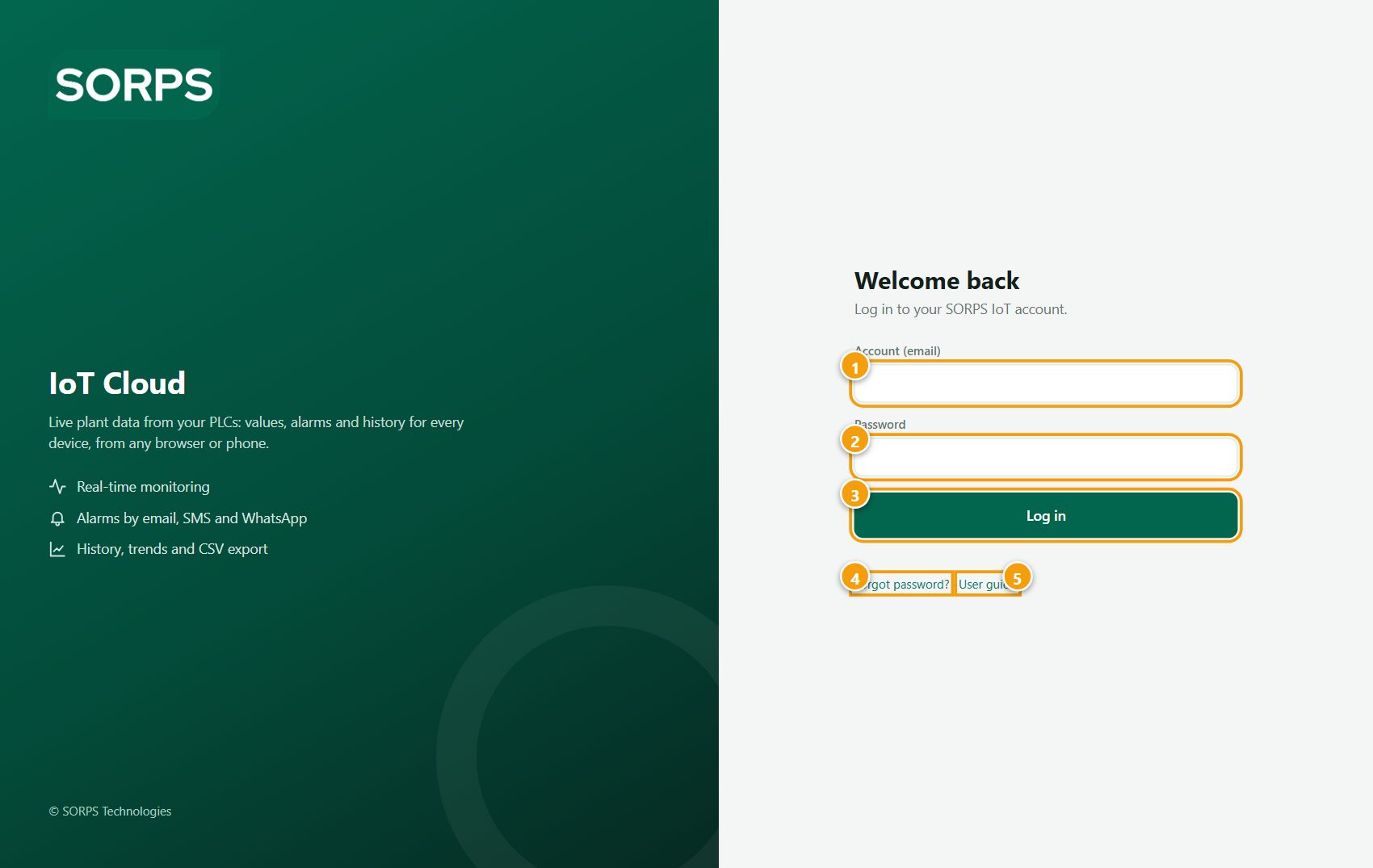
- E-mail address (your login name)
- Password
- Log in
- Forgot password? – reset by e-mail
- User guide – this manual
5.2 Forgotten password and locked account
- On the login page click Forgot password?.
- Enter your e-mail address and click Send reset link.
- Open the e-mail from SORPS IoT Cloud within 1 hour and click the link. Check your spam folder if it does not arrive.
- Enter a new password twice (at least 8 characters) and click Save new password. Then log in with the new password.
A locked account (after 5 wrong passwords) unlocks automatically after 15 minutes, or immediately when you reset your password.
5.3 Navigating the portal
- The menu on the left leads to all pages. On a phone, open it with ☰.
- Top right: display mode (automatic / light / dark), your name and role, change password (lock icon) and log out (arrow icon).
- Confirmations and error messages appear briefly at the top right of the screen.
5.4 Logging out
Click the log-out icon at the top right. Sessions also end automatically after 7 days.
6 Operation
6.1 Overview page
The Overview page appears after logging in and summarises all your devices. It refreshes automatically every 30 seconds.
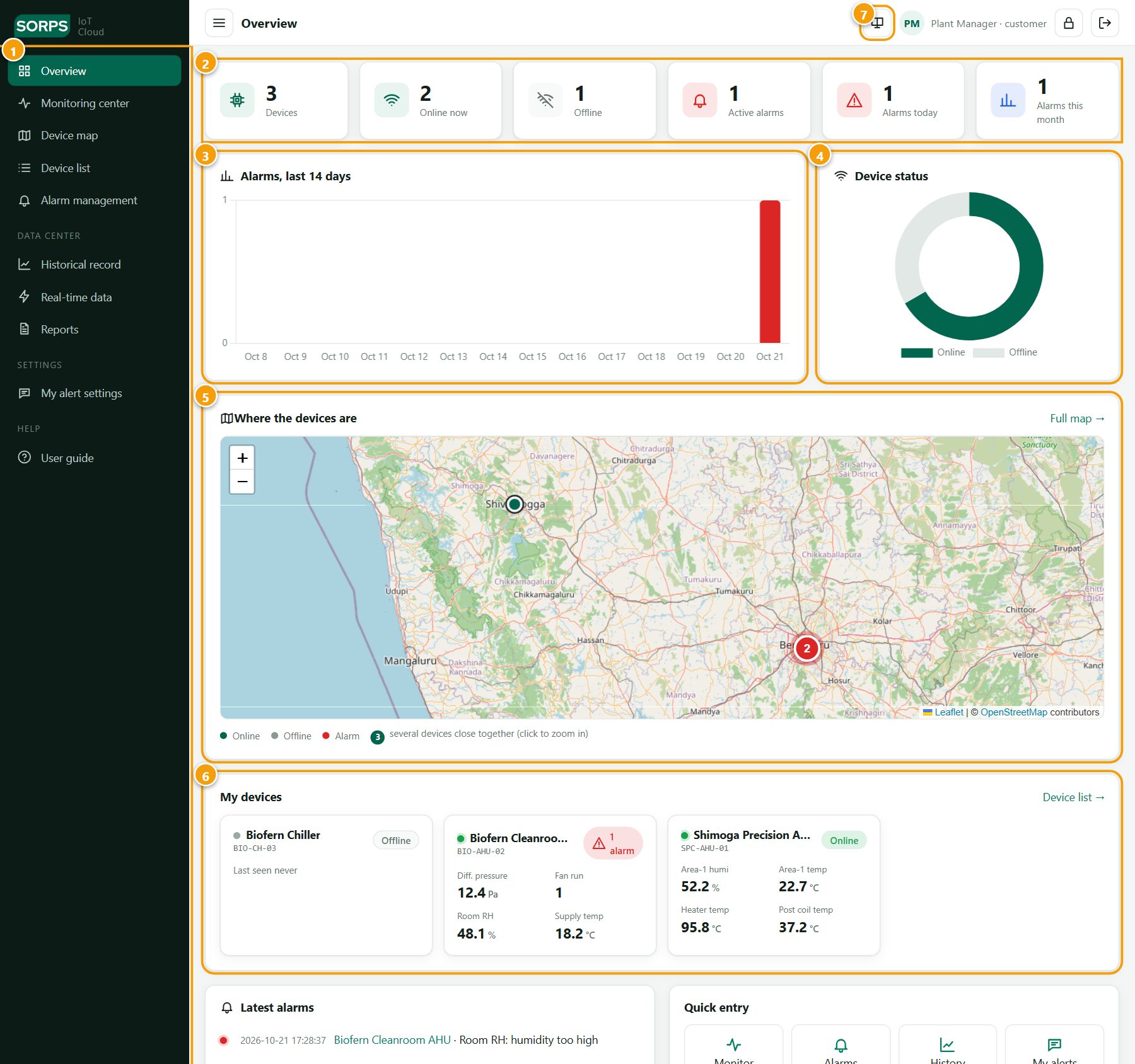
- Menu
- Tiles: devices, online, offline, active alarms, alarms today / this month
- Alarms, last 14 days: one bar per day
- Device status: online versus offline
- Map of your sites (section 6.2)
- Device cards with key live values; click to open
- Display mode
6.2 Device map
Menu Device map shows the location of your devices.
- Click a coloured dot to show the device's status and key values.
- Click Open device to go to the device (section 6.4).
- A number bubble stands for several devices close together. Point at it to see how many are online, offline or in alarm; click it to zoom in until the devices separate.
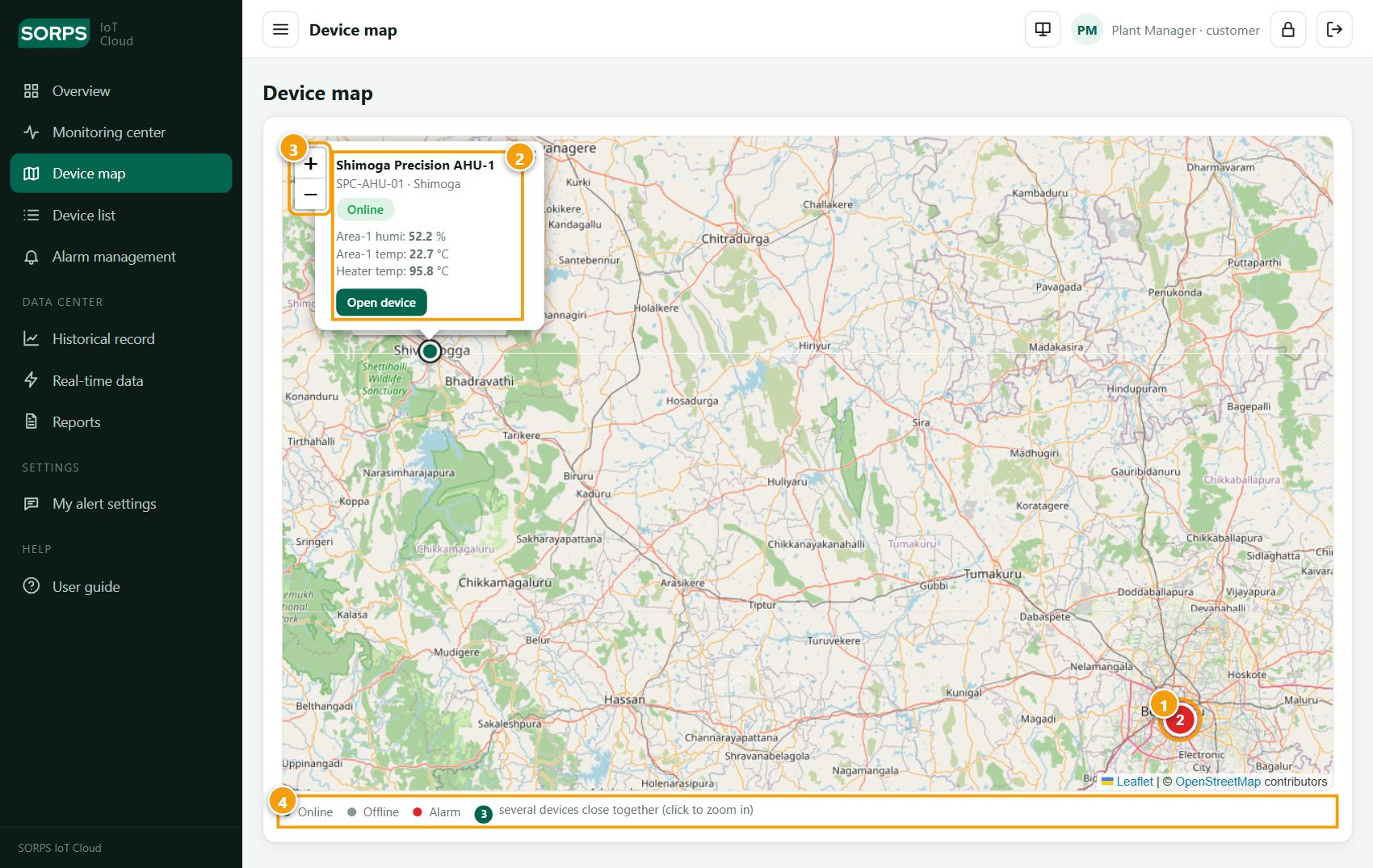
- Number bubble – 2 devices; red = at least one alarm
- Device pop-up with Open device
- Zoom
- Legend
Colours: see Appendix B. Zoom with + / −, or with the mouse wheel after clicking once on the map.
6.3 Device list
Menu Device list lists all your devices; useful when you have many.
- Type a name, serial number, site or group in the search box, or choose a status.
- Click the device name or Open →.
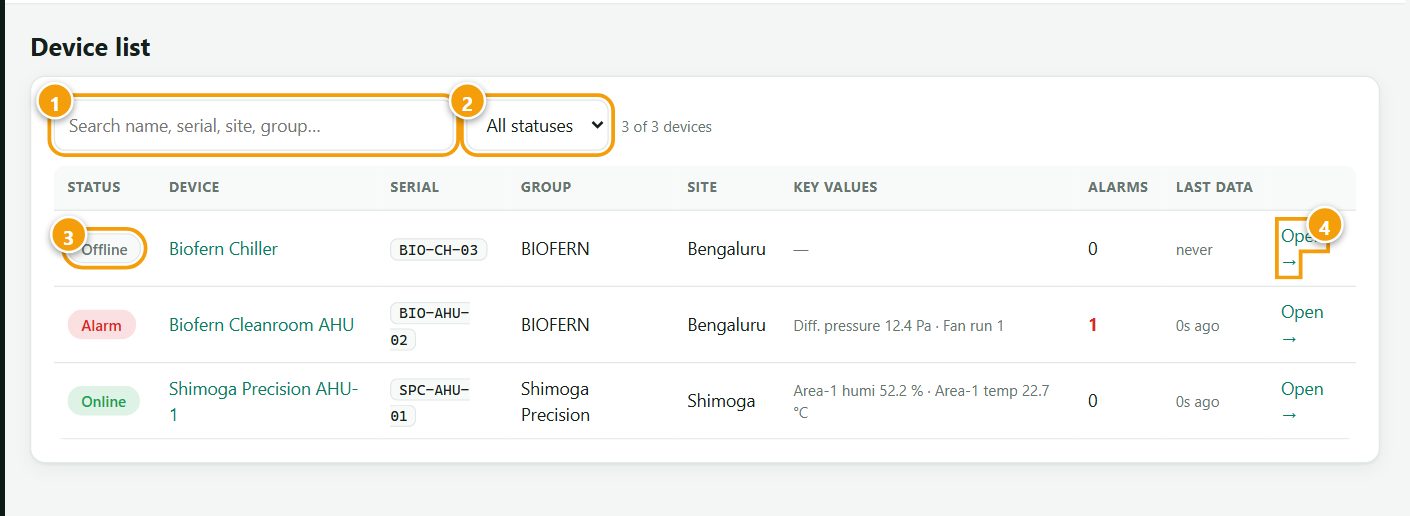
- Search
- Status filter
- Device status
- Open the device
6.4 Monitoring a device
- Open menu Monitoring center.
- In the device tree on the left, open a group and click a device.
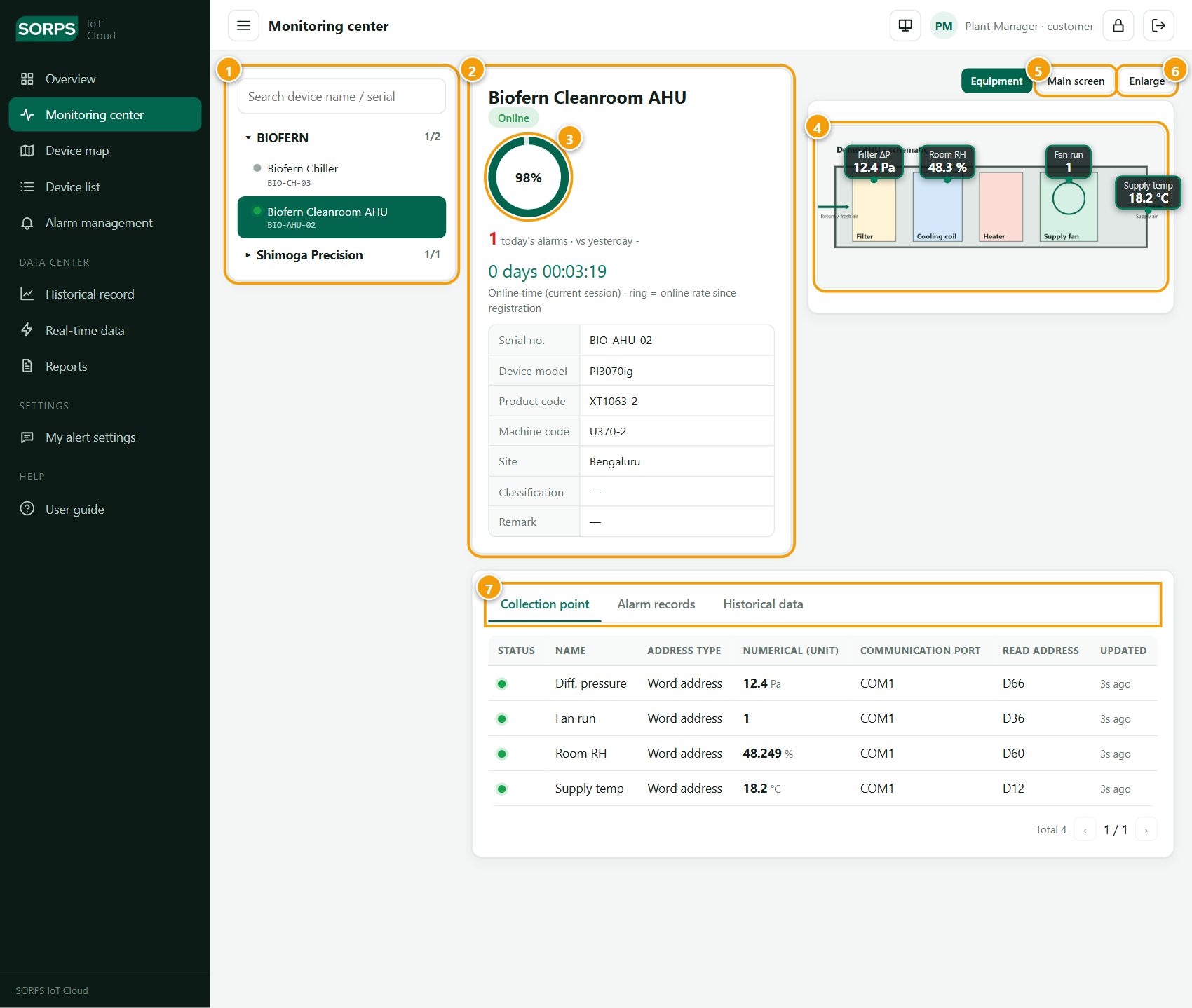
- Device tree – online / total per group
- Device card – status, alarms today, identification
- Online rate since installation
- Equipment picture with live values
- Main screen view
- Enlarge the picture
- Tabs
Device card
Online time is the time since the device last connected without interruption. The online rate (%) is the share of time the device has been connected since it was installed. Serial number, model, product code and machine code identify the equipment; quote them when contacting SORPS.
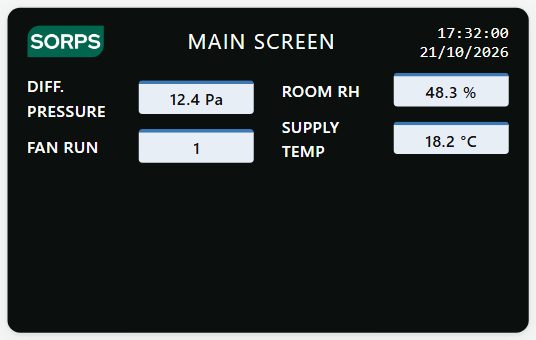
Equipment picture and Main screen
If configured by SORPS, a picture of your equipment shows the live values at the sensor positions. Main screen switches to an operator-panel view of all values. Values update automatically every few seconds.
Collection point tab
Lists every measured value with unit, PLC address and time of the last update.
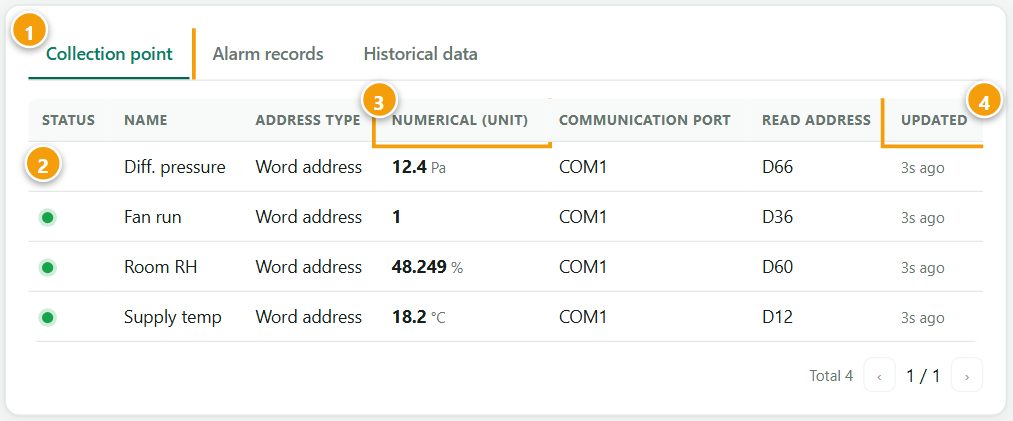
- Collection point tab
- Green dot – value is current
- Value with unit
- Updated – age of the value
6.5 Alarms
An alarm is raised when a value exceeds a limit set by SORPS (for example "Room RH: humidity too high"), or when a device sends no data for a set time ("Device offline"). An alarm clears automatically when the value returns to normal or the device sends data again.
- Open menu Alarm management (or the Alarm records tab of a device).
- Filter by device and status if required.
- Click Confirm to record that the alarm has been seen and is being handled. Your name and the time are saved and visible to your colleagues.
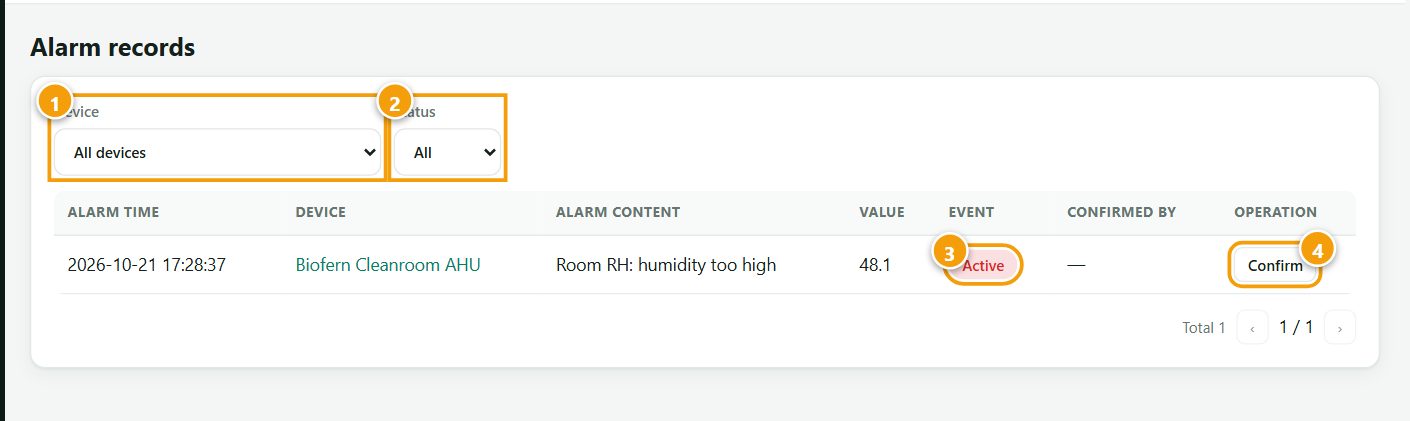
- Device filter
- Status filter (all / active / cleared)
- Active – the condition still exists
- Confirm
Confirming an alarm only records that it was seen. It does not change anything on the equipment and does not clear the alarm.
6.6 Historical data and trends
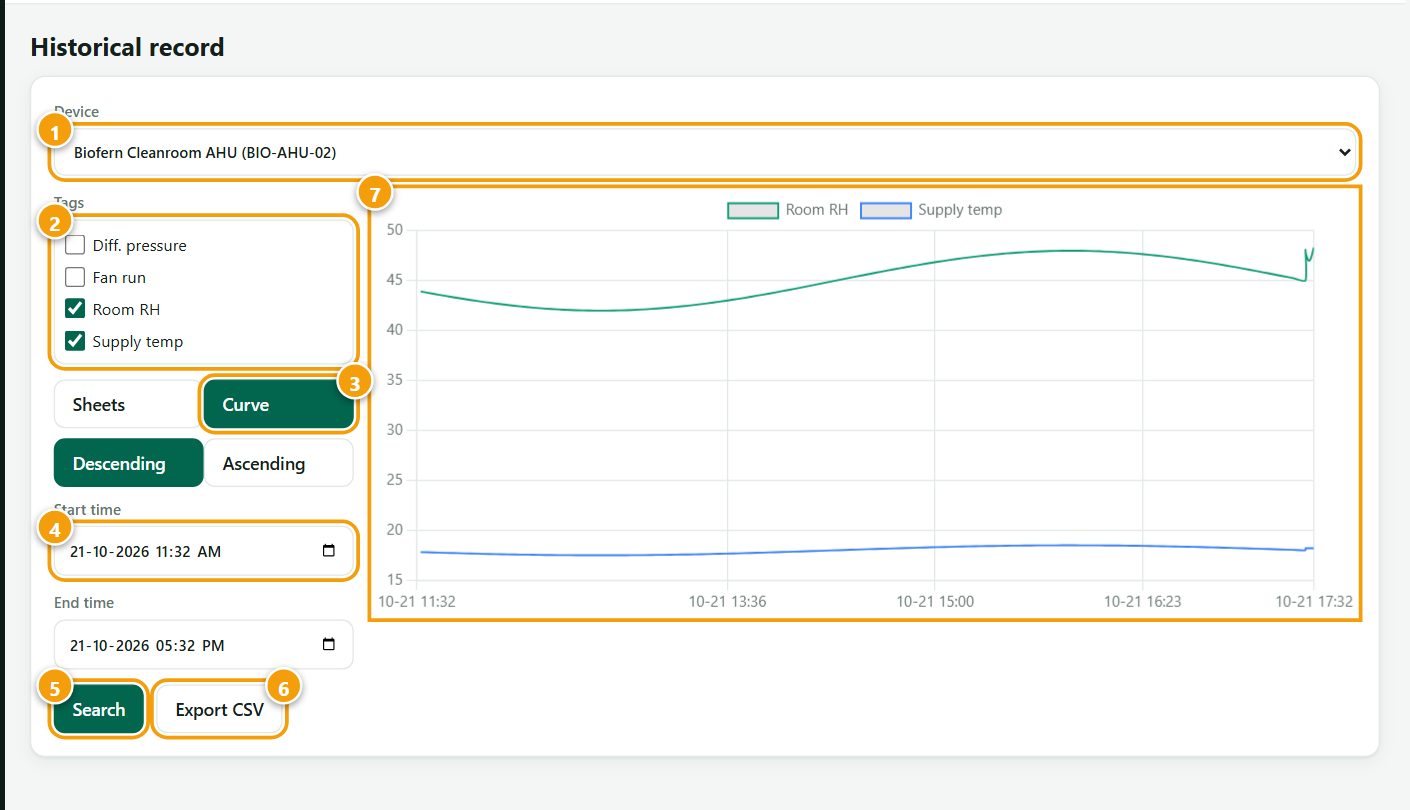
- Open menu Historical record and choose the device (or use the Historical data tab of a device).
- Tick the values to display.
- Choose Curve for a chart or Sheets for a table; for tables choose newest first (Descending) or oldest first (Ascending).
- Set the start and end time, then click Search.
- Optional: click Export CSV to download the data for Excel.
- Device
- Values to show
- Curve / Sheets
- Start / end time
- Search
- Export CSV
- Chart – point at a line for exact values
Values are stored in full detail for 90 days (standard setting); older data is kept as hourly average, minimum and maximum and is marked "(hourly avg)" in tables.
6.7 Real-time data
Menu Real-time data: choose a device to see all its values with the exact time of the last reading, updated live.
6.8 Reports
- Open menu Reports.
- Tick the devices; ticking a group ticks all its devices.
- Choose the period: yesterday, today so far, last 7 days, last month or a custom period (maximum 93 days).
- Click Download .xlsx.
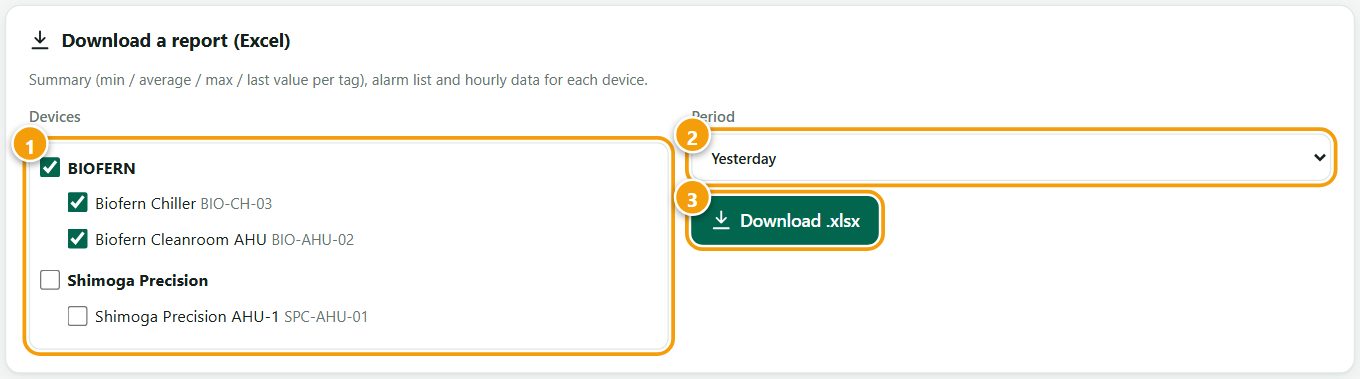
- Devices
- Period
- Download
| Sheet | Content |
|---|---|
| Summary | Minimum, average, maximum and last value of every measurement, per device |
| Alarms | All alarms in the period with clearing time and confirmation |
| One sheet per device | Hourly average values |
| Info | Report period and creation time |
Table 5 – Content of the Excel report
SORPS can also e-mail reports automatically (daily, weekly or monthly). Contact SORPS to set this up (chapter 9).
6.9 Alarm notifications
- Open menu My alert settings.
- Tick the channels: E-mail (sent to your login address), SMS, WhatsApp.
- For SMS / WhatsApp enter your mobile number with country code, for example
+919876543210. - Click Save.
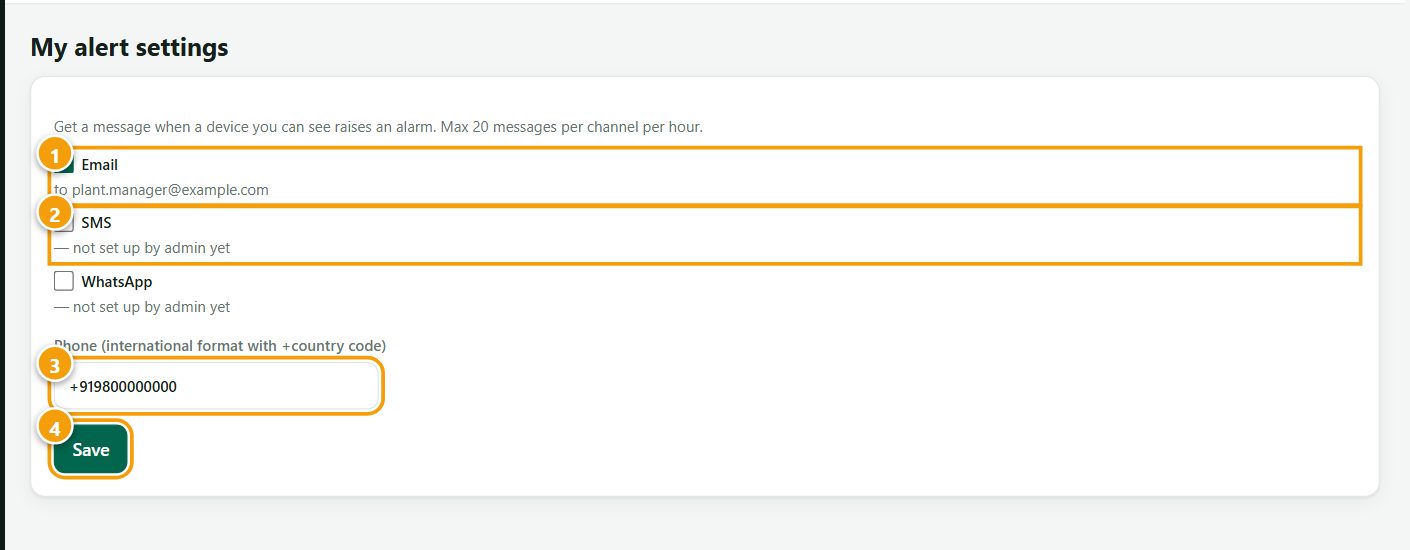
- SMS / WhatsApp – when activated by SORPS
- Mobile number
- Save
You receive one message when an alarm starts on any device you can see. To prevent message floods, at most 20 messages per channel and hour are sent to each person. An example is shown in Appendix C.
Notifications can be delayed or lost. They do not replace on-site alarms and supervision (section 2.2).
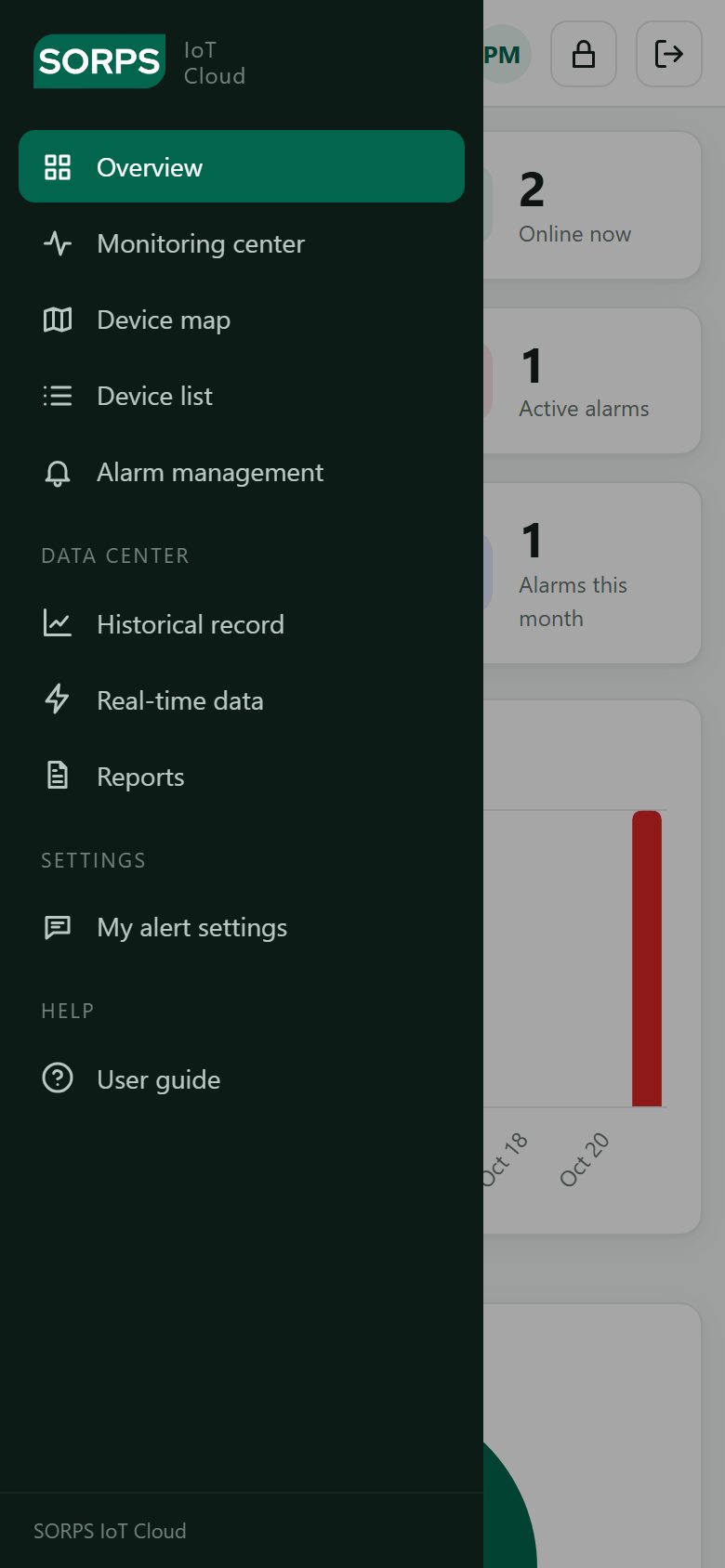
6.10 Using mobile devices
The portal adapts to phones and tablets. To add it to the home screen like an app:
- Android (Chrome): menu ⋮ → Add to Home screen or Install app.
- iPhone / iPad (Safari): Share → Add to Home Screen.
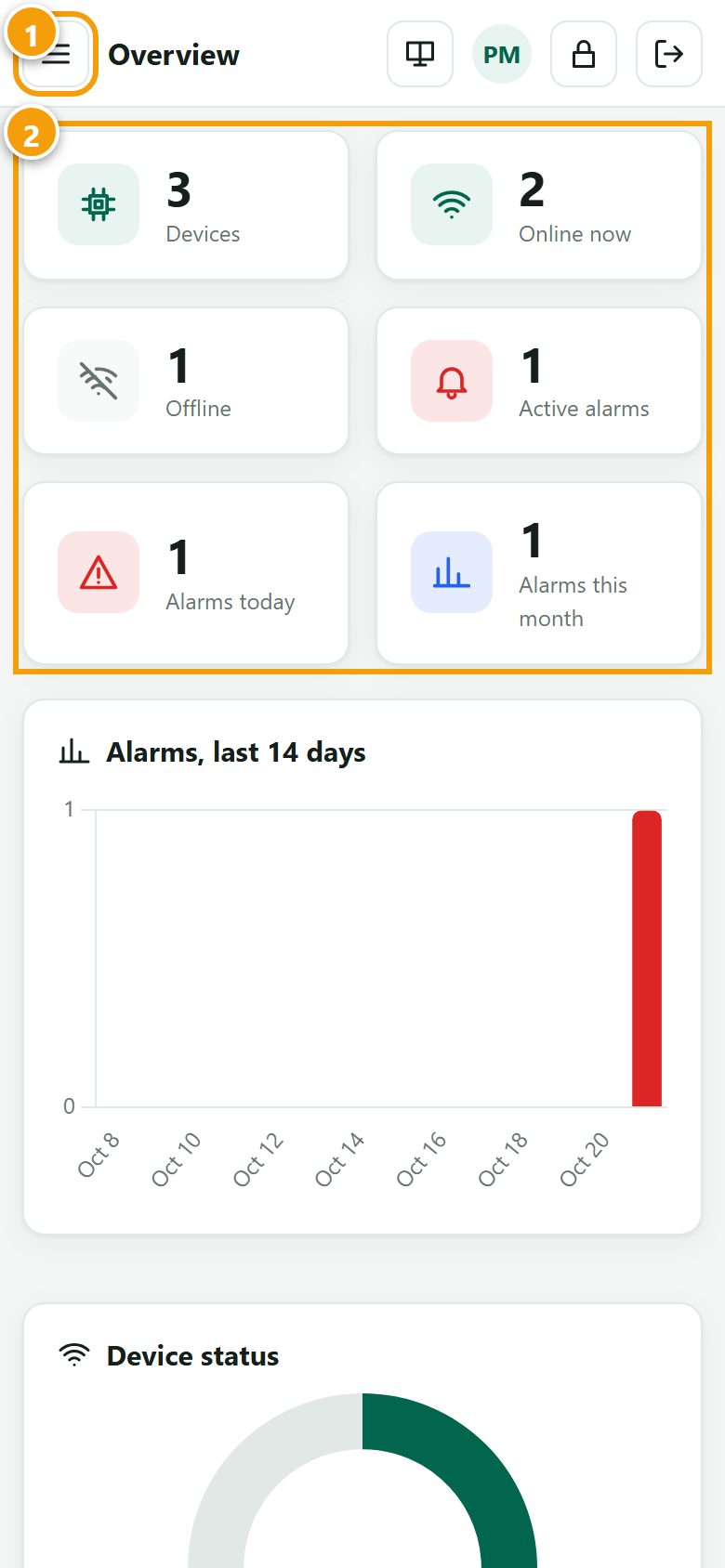
- Menu button
- Tiles
6.11 Account settings
- Click the lock icon at the top right.
- Enter your current password, then the new password (at least 8 characters).
- A confirmation appears at the top right.
Additional accounts for colleagues and changes to access rights are requested from SORPS.
7 Troubleshooting
| Symptom | Possible cause | Remedy |
|---|---|---|
| Cannot log in: "Wrong account or password" | Typing error; Caps Lock on; wrong e-mail address | Check the entry; use Forgot password? (5.2) |
| "Account locked …" | 5 incorrect attempts | Wait 15 minutes or reset the password (5.2) |
| Password-reset e-mail not received | Spam filter; different e-mail address | Check spam folder; wait 5 minutes and try again; contact SORPS |
| Device shows Offline | No power at the panel; internet / router / SIM failure at site | Check power and network on site (observe the equipment manual); the device returns to Online automatically; contact SORPS if it persists |
| Values do not change | Device not sending; page not refreshed | Check "Updated" in the Collection point tab (6.4); reload the page (Ctrl + F5) |
| No alarm e-mail / SMS | Channel not ticked; spam filter; channel not activated; alarm still active (sent only once) | Check My alert settings (6.9) and spam folder; contact SORPS |
| A device is missing | Device not assigned to your account | Ask SORPS to assign it |
| Map shows a number instead of dots | Several devices close together | Click the number to zoom in (6.2) |
| Map is empty or grey | Device location not set; map server blocked by firewall | Ask SORPS to set the location; allow tile.openstreetmap.org |
| Report download does not start | Download blocked by browser | Allow downloads for iot.sorpstech.com |
Table 6 – Troubleshooting
8 Data retention and privacy
- Operating data of your equipment is stored on the SORPS IoT Cloud server in India. Detailed values are kept for 90 days (standard setting), hourly summaries thereafter.
- Alarm records and notification logs are kept for one year.
- Personal data stored for each user: name, e-mail address, company, optional mobile number, alert preferences and a record of logins and actions (operation log). It is used only to operate the service and is not sold or shared with third parties, except service providers needed to deliver e-mail and SMS / WhatsApp messages.
- Passwords are stored only in encrypted (hashed) form; SORPS staff cannot read them.
- Requests for access to, correction or deletion of personal data: contact SORPS (chapter 9).
9 Service and support
| Manufacturer / service provider | SORPS Technologies Private Limited B-59, Printech Park, Harohalli Industrial Area 3rd Main Rd, 1st Phase, Kanakapura Bangalore, Karnataka 562112, India |
|---|---|
| Telephone | +91 97418 51258 · +91 95354 51180 · +91 98807 16097 |
| +91 97418 51258 | |
| contact@sorpstech.com (support) · sales@sorpstech.com (sales) | |
| Website | www.sorpstech.com |
| Business hours | Monday – Saturday, 9:00 – 17:00 IST (UTC+5:30) |
Table 7 – Contact information
When contacting SORPS, please state:
- your company name and your login e-mail address;
- device name and serial number (shown on the device card);
- a description of the problem with date and time, and a screenshot if possible.
Appendix A – Glossary and abbreviations
| Term | Meaning |
|---|---|
| Alarm | Message raised when a value exceeds its limit or a device is offline |
| Collection point | A measured value (tag) of a device, e.g. a temperature |
| Confirm | Record that an alarm has been seen and is being handled |
| CSV | Comma-separated values; file format readable by Excel |
| Device | A monitored machine or panel, identified by its serial number |
| Gateway | Device that connects the PLC to the internet |
| HTTPS | Encrypted connection between browser and server |
| IoT | Internet of Things |
| Offline / Online | Device has / has not sent data recently |
| Online rate | Share of time a device has been connected since installation |
| PLC | Programmable logic controller of the equipment |
| Portal | The SORPS IoT Cloud website |
| RH | Relative humidity |
| Tag | Name of a value sent by the PLC |
| ΔP | Differential pressure |
Table 8 – Glossary and abbreviations
Appendix B – Status indicators
| Indicator | Meaning |
|---|---|
| Green dot / "Online" | Device connected; data is current |
| Grey dot / "Offline" | No data received recently |
| Red dot (pulsing) / "Alarm" | Device has at least one active alarm |
| 3Number bubble on the map | Several devices close together; colour = most urgent status inside |
| Active | Alarm condition still exists |
| Cleared (with time) | Alarm condition has ended |
| Green / red message, top right | Action completed / error |
Table 9 – Status indicators
Appendix C – Example alarm notification
| Subject | ALARM: Biofern Cleanroom AHU - Room RH: humidity too high |
|---|---|
| Message | Device: Biofern Cleanroom AHU (BIO-AHU-02) Alarm: Room RH: humidity too high Value: 48.1 Time: 21/10/2026, 5:28:37 pm https://iot.sorpstech.com/#/monitor/2 |
Table 10 – Example of an alarm e-mail (SMS / WhatsApp contain the same text)

SORPS Technologies Private Limited
B-59, Printech Park, Harohalli Industrial Area, 3rd Main Rd, 1st Phase
Kanakapura, Bangalore, Karnataka 562112, India
+91 97418 51258 · contact@sorpstech.com · www.sorpstech.com
SORPS-IOT-UM-001 · Rev 1 · 2026-10-21
SORPS-IOT-UM-001 · Rev 1 · 2026-10-21 · © 2026 SORPS Technologies Private Limited